Run a provably-fair competition, step by step
No code required. Follow these steps in order and your competition will be drawn against a public randomness beacon — then the winning ticket and a shareable verify link appear on your competition page automatically, for your entrants to check for themselves.
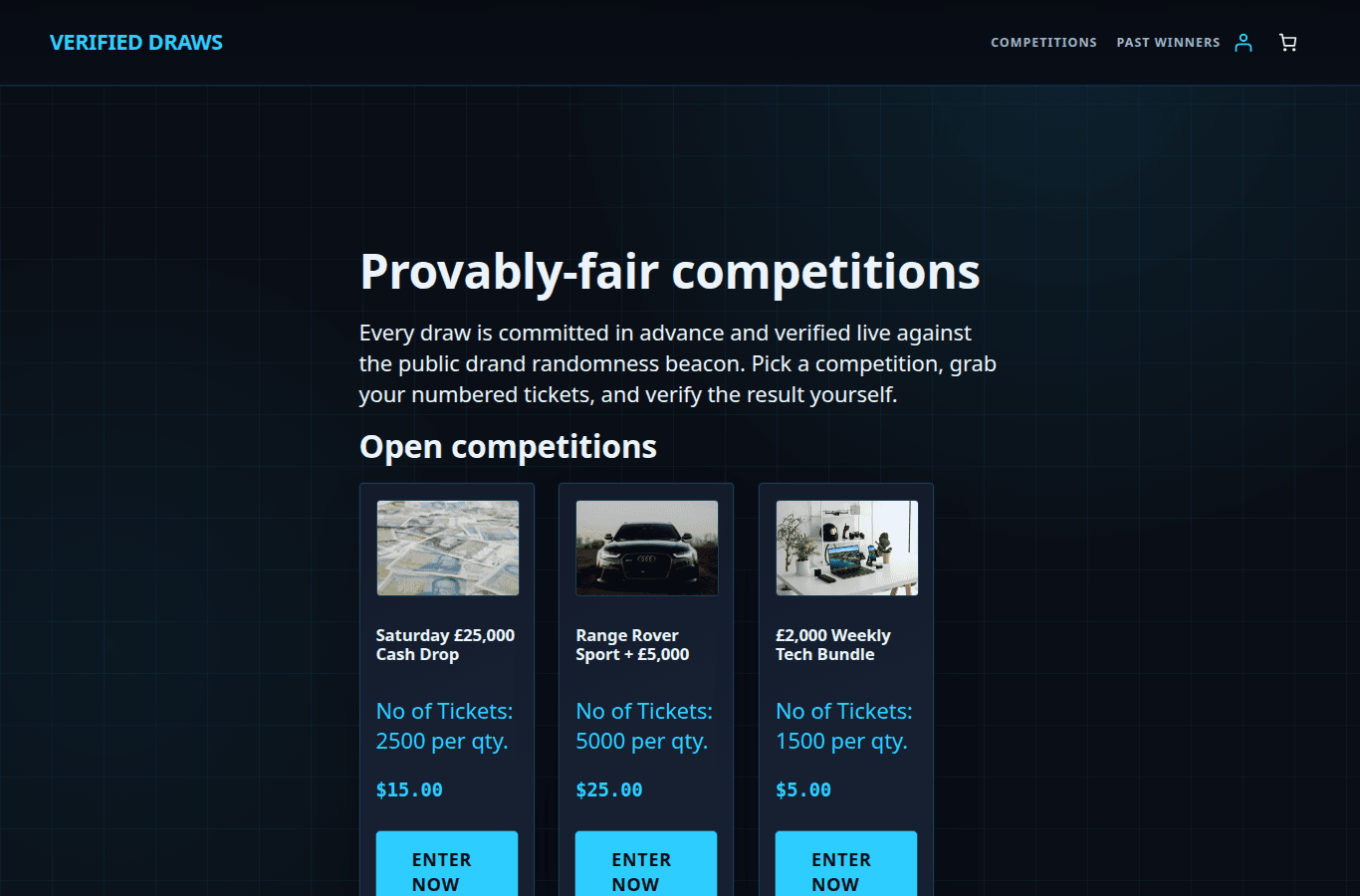
The steps below sit on top of your own live competition site — nothing about how your entrants browse, pick a competition, or buy tickets changes. Your home page lists the open competitions with their prize photos and ticket details, exactly as it does today.
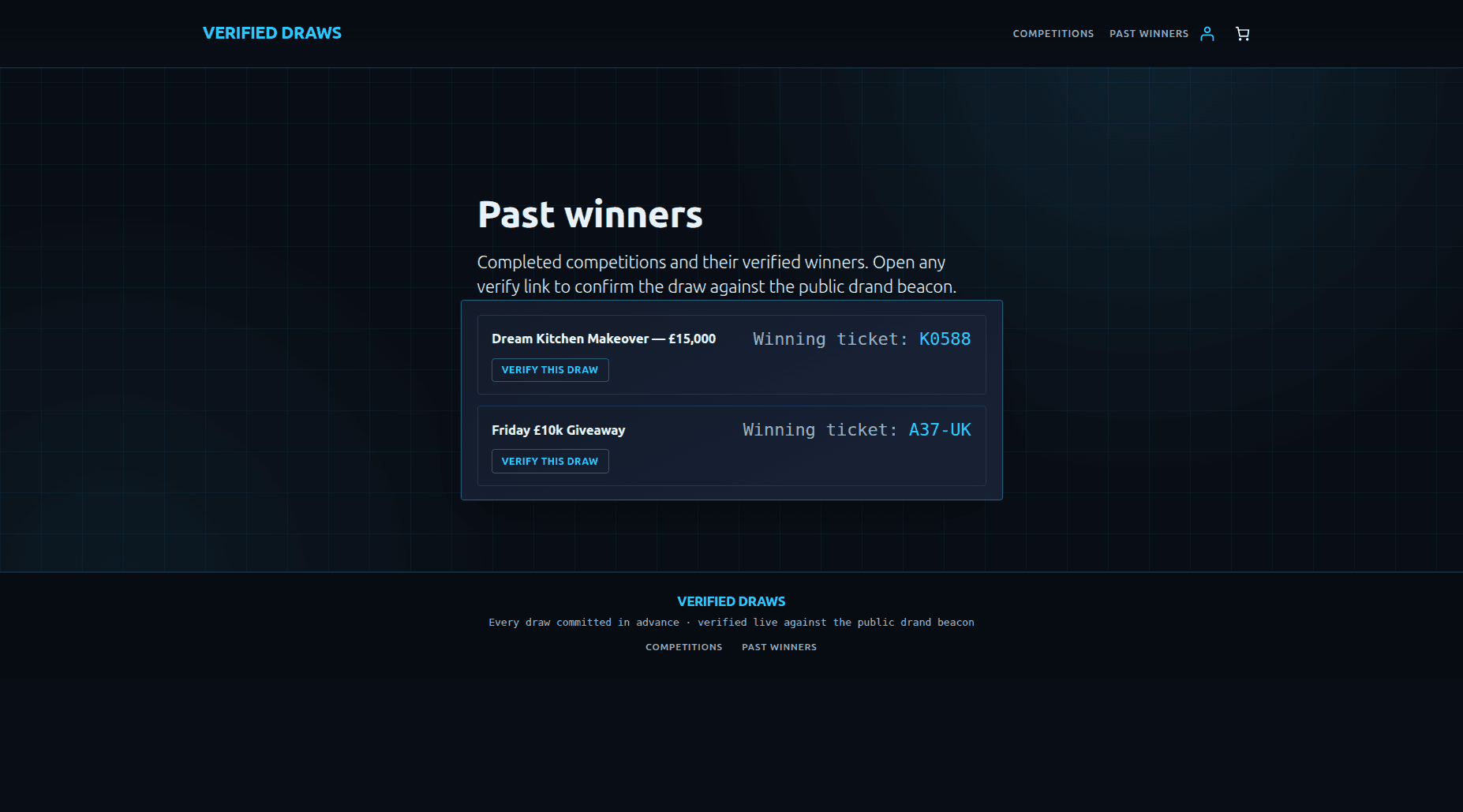
Verified Draws simply adds a provably-fair draw at the end and the verification it produces. By the time you reach the final step, each finished competition page shows its winning ticket and a shareable verify link, and a Past Winners page collects them all in one place for anyone to check.
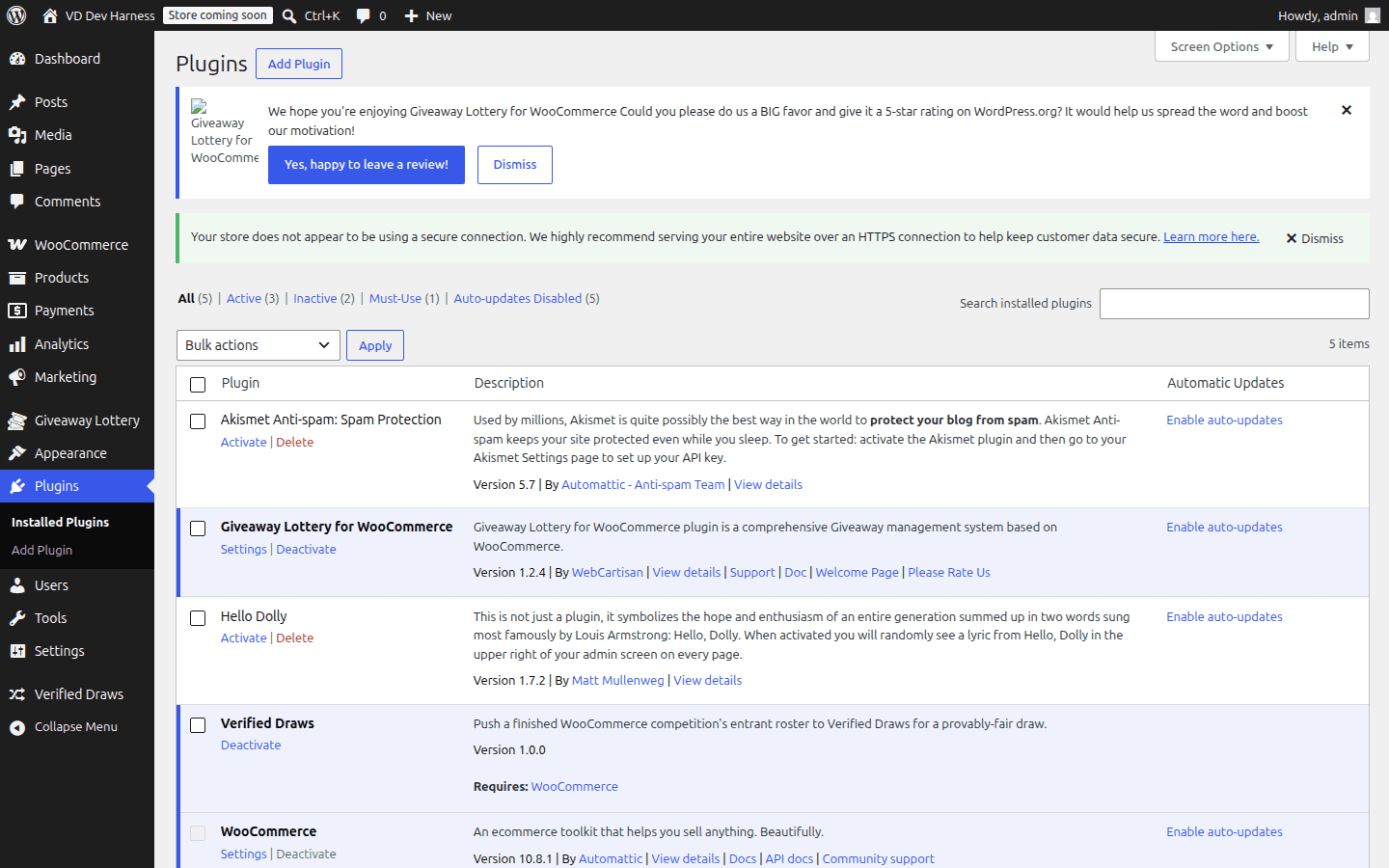
Download the Verified Draws plugin zip. In your WordPress admin, go to Plugins → Add New, choose Upload Plugin, and select the zip you just downloaded.
Once it uploads, press Activate. That is all the installation takes — there is nothing to configure on your server.
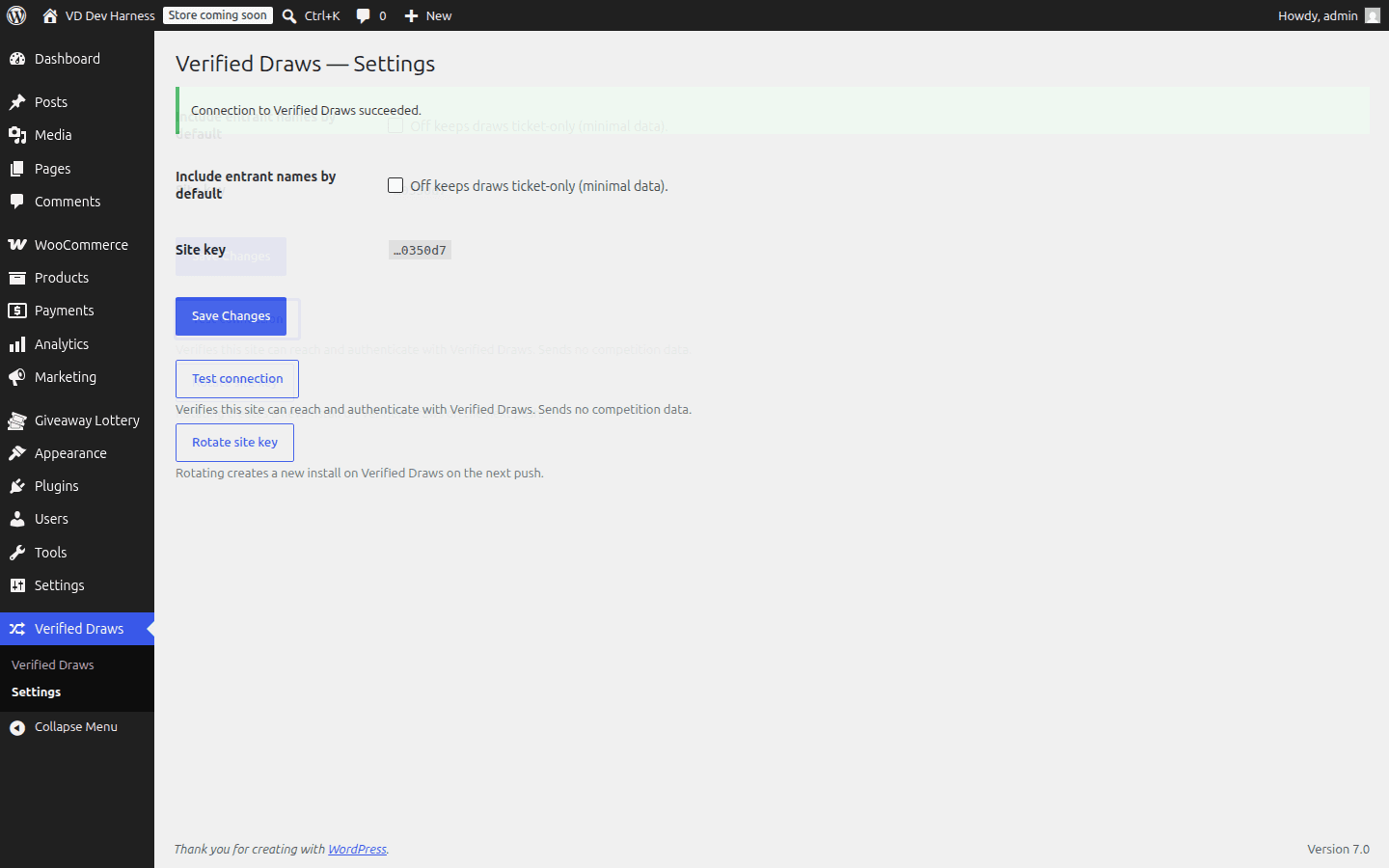
Open Verified Draws → Settings and run the one-time connection self-test. The plugin checks that your site can reach Verified Draws and confirms the link is healthy.
Your site key is created for you automatically and sent securely behind the scenes — you never have to copy, paste, or store anything. A green result means you are connected and ready.
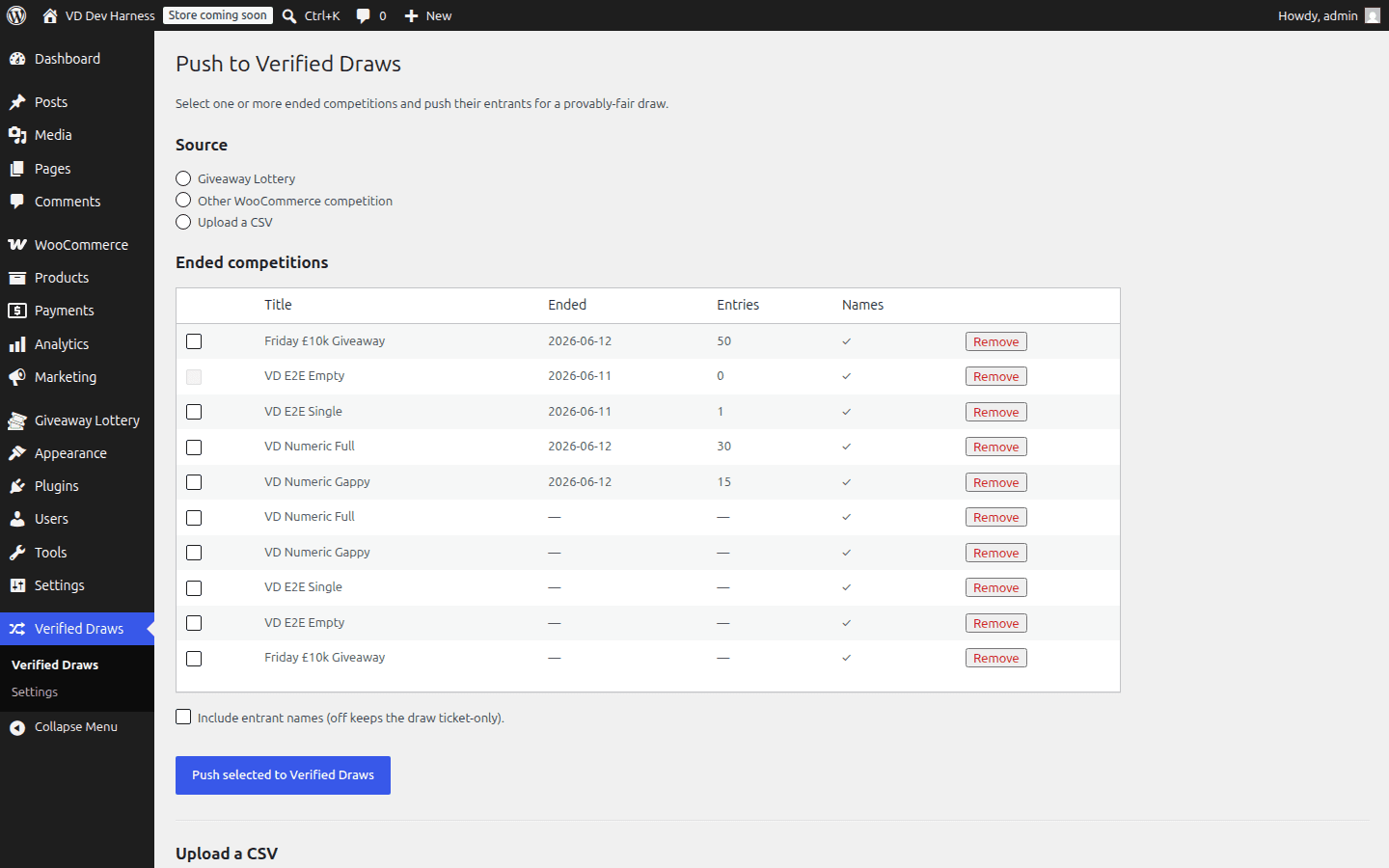
When a competition has ended, find it in your competitions list and tick the box next to it. You can select more than one at a time.
Press Push selected to Verified Draws. The plugin sends the final list of sold ticket numbers over for the draw — never names, emails, or payment details. There is nothing else to fill in.
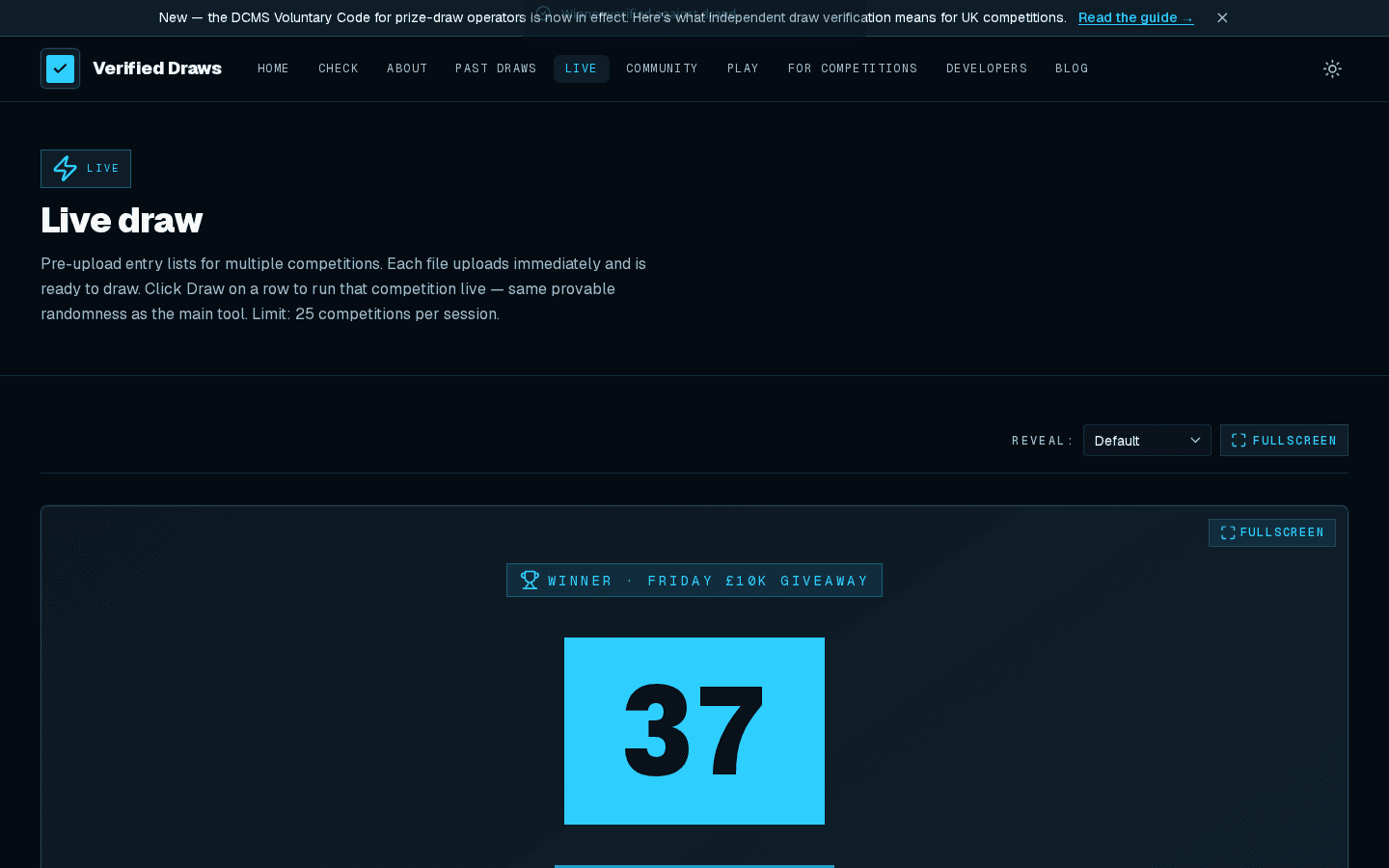
Open the draw on Verified Draws and reveal the winner live. The result is settled by the public drand randomness beacon, so neither you nor anyone else can influence the outcome.
The winning ticket and its verification details are saved automatically the moment the draw resolves — there is nothing to write down.
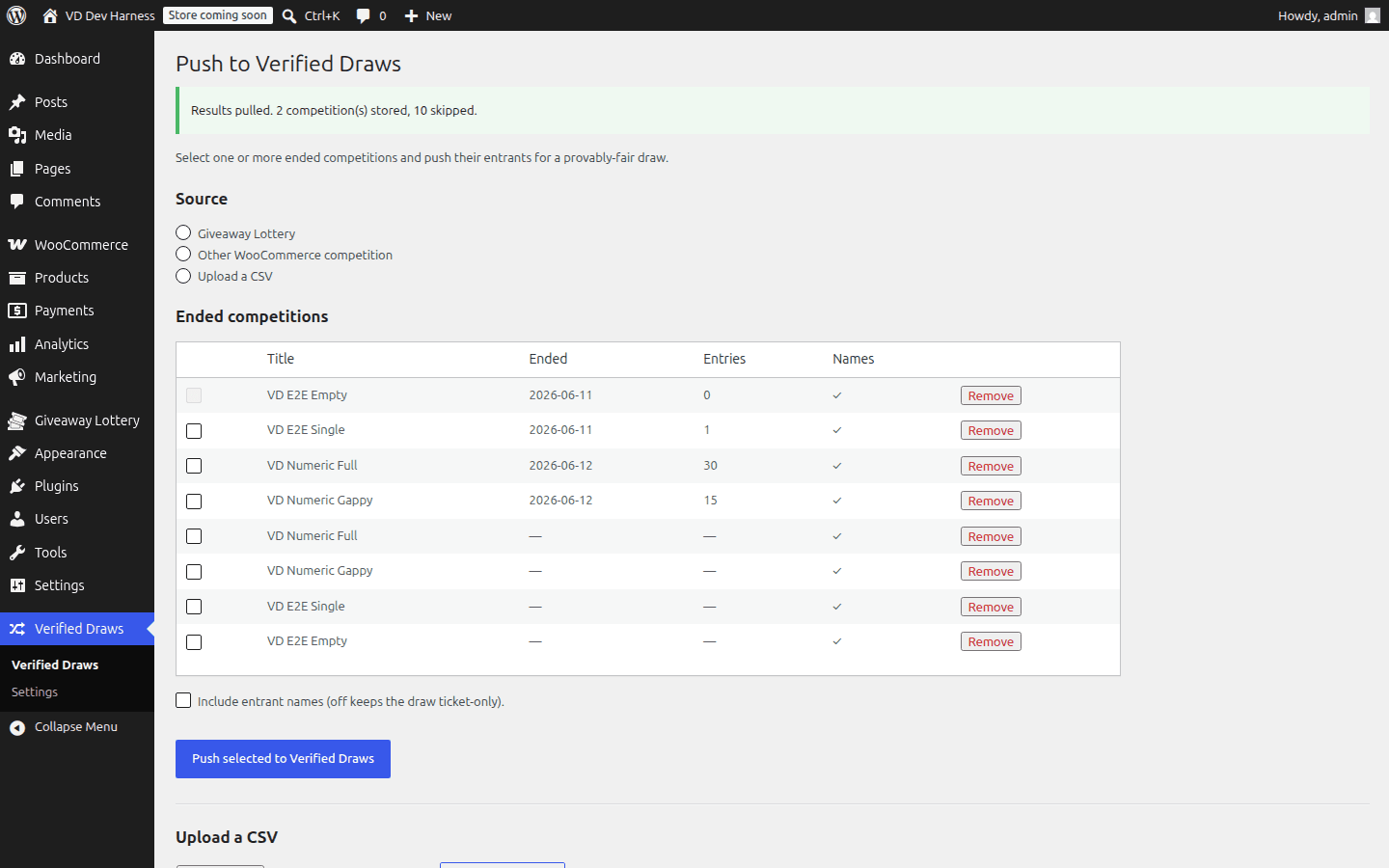
Back in WordPress, open the Verified Draws plugin and press Pull verification results. Every competition’s winner and verify links come back in one go.
You can run this again any time — it simply refreshes the stored results with the latest from Verified Draws.
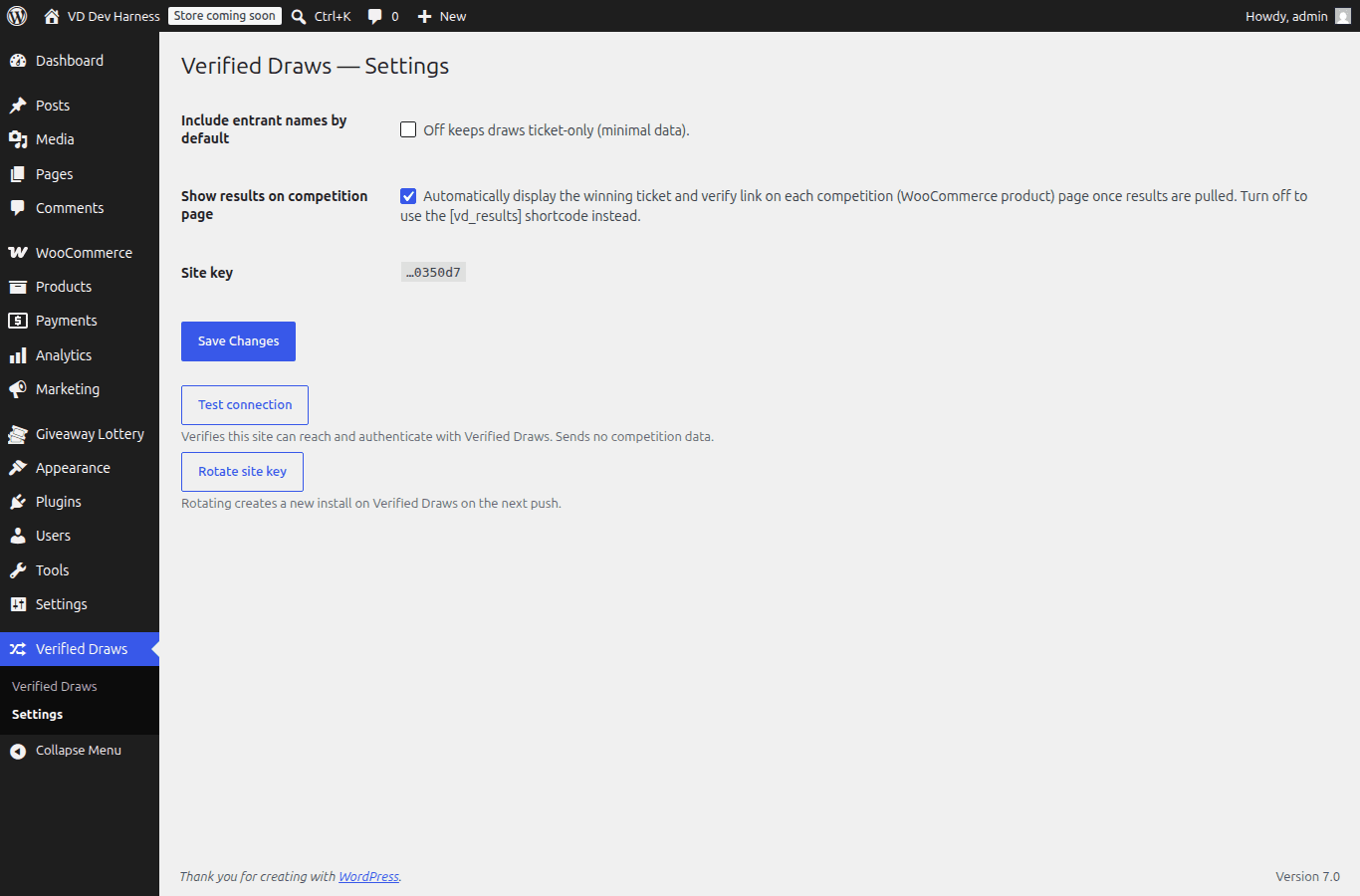
You do not have to do anything for the winner to appear. Under Verified Draws → Settings, the Show results on competition page toggle is on by default, so the winning ticket and verify link are added to each competition page for you the moment results are pulled.
If your site uses a custom layout and you would rather place the results yourself, switch this toggle off and use the manual options in the next step instead.
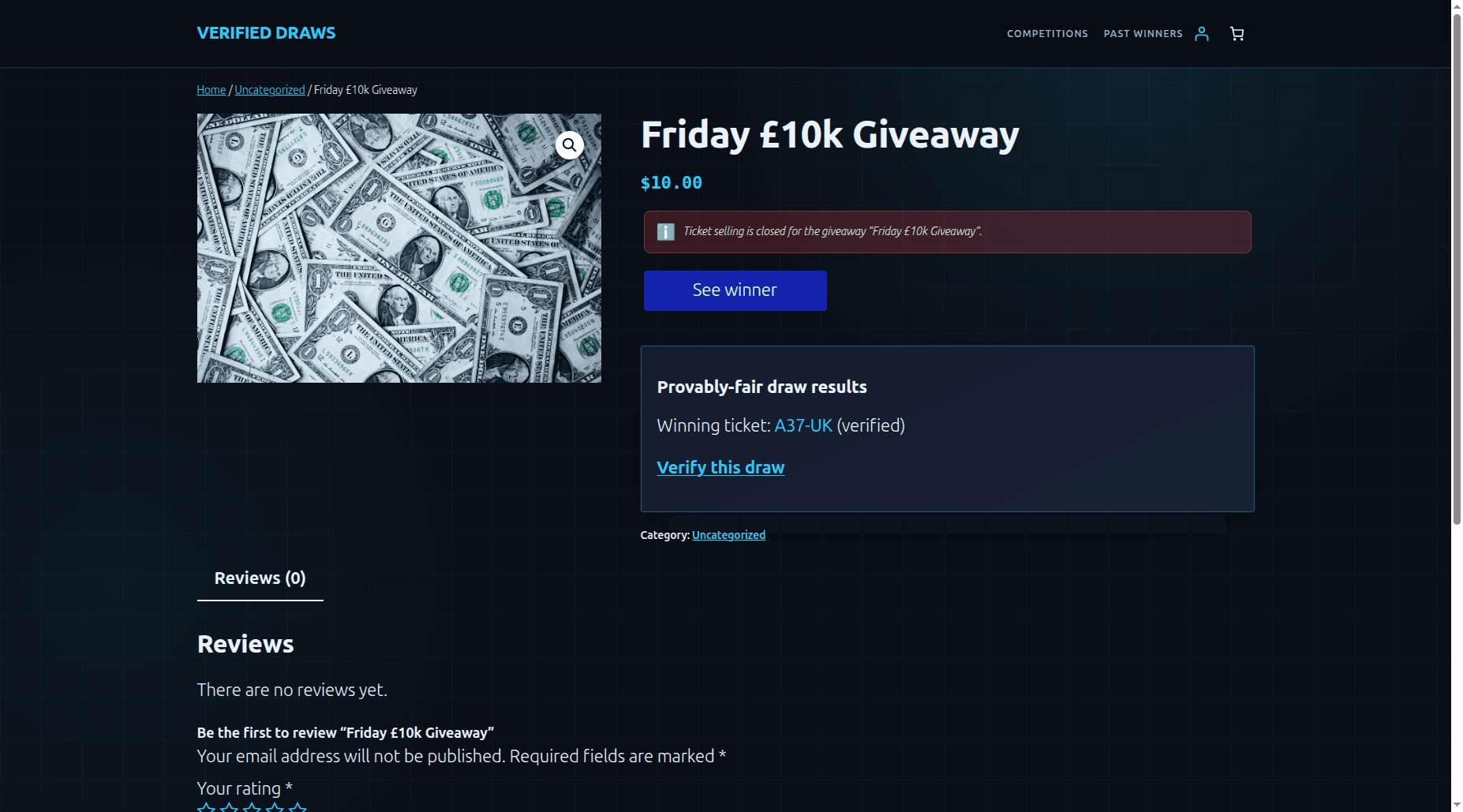
With on-page display on (the default), the winning ticket and a Verify this draw link appear on your competition page automatically — there is nothing to place by hand. The screenshot above is a real competition page after pulling results.
If you turned the automatic display off, or you want the results in a specific spot in a custom layout, you have two manual options. Drop this shortcode wherever you want the results to show:
[vd_results]Or copy the winning ticket and its verify link straight from the pulled results and place them into your own template. Either way, your entrants can follow the verify link and confirm the result against the public beacon themselves — proof anyone can check.
Alongside the result on each competition page, every drawn competition is collected on your Past Winners page. It lists each finished competition, its winning ticket, and a verify link, so entrants can browse past results and confirm any of them against the public beacon.
Nothing extra to set up — once you have pulled results, they appear here automatically as the natural end of the flow.